VS Code Settings
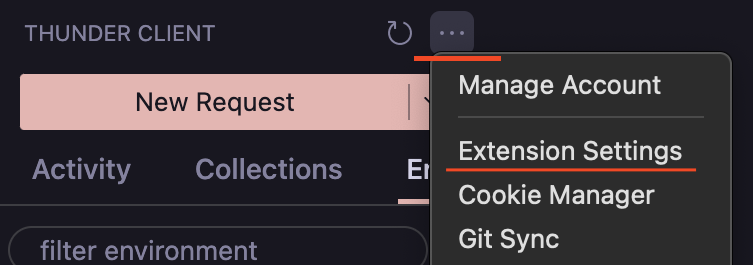
To see all the VS Code settings for Thunder Client:
- Open the VS Code Settings view, then search for
Thunder Client. - In the Sidebar view, click the
...menu at the top, then clickExtension Settings.
Keyboard Shortcuts
Ctrl+Shift+P(from Command Palette):- Thunder Client — New Request
- Thunder Client — Run Last Request
- Thunder Client — Import cURL
- Thunder Client — Change Environment
- Thunder Client — Convert To Postman Format
Cmd/Ctrl + Enter— To execute the request.Enter— on the request URL field to send the request.Cmd/Ctrl + s— Save request without running.Cmd/Ctrl + click— on request in Sidebar will open it in a new tab.Cmd/Ctrl + click— on collection/folder will open collection settings.Cmd/Ctrl + s— Environment view save data.Cmd/Ctrl + e— Change active environment.Alt+Shift + f— Format post body data.Cmd/Ctrl + u— Import cURL.Alt + z— Toggle word-wrap on response.Escape— Cancel response full-screen mode.
HTTP/2
- To send a request using the HTTP/2 protocol, please select the
HTTP/2option in VS Code settings for HTTP Version.
Form Content Type
- Thunder Client is now available for JetBrains IDEs New
This feature is available only in the paid version.
How to set a custom Content Type in a multipart form request
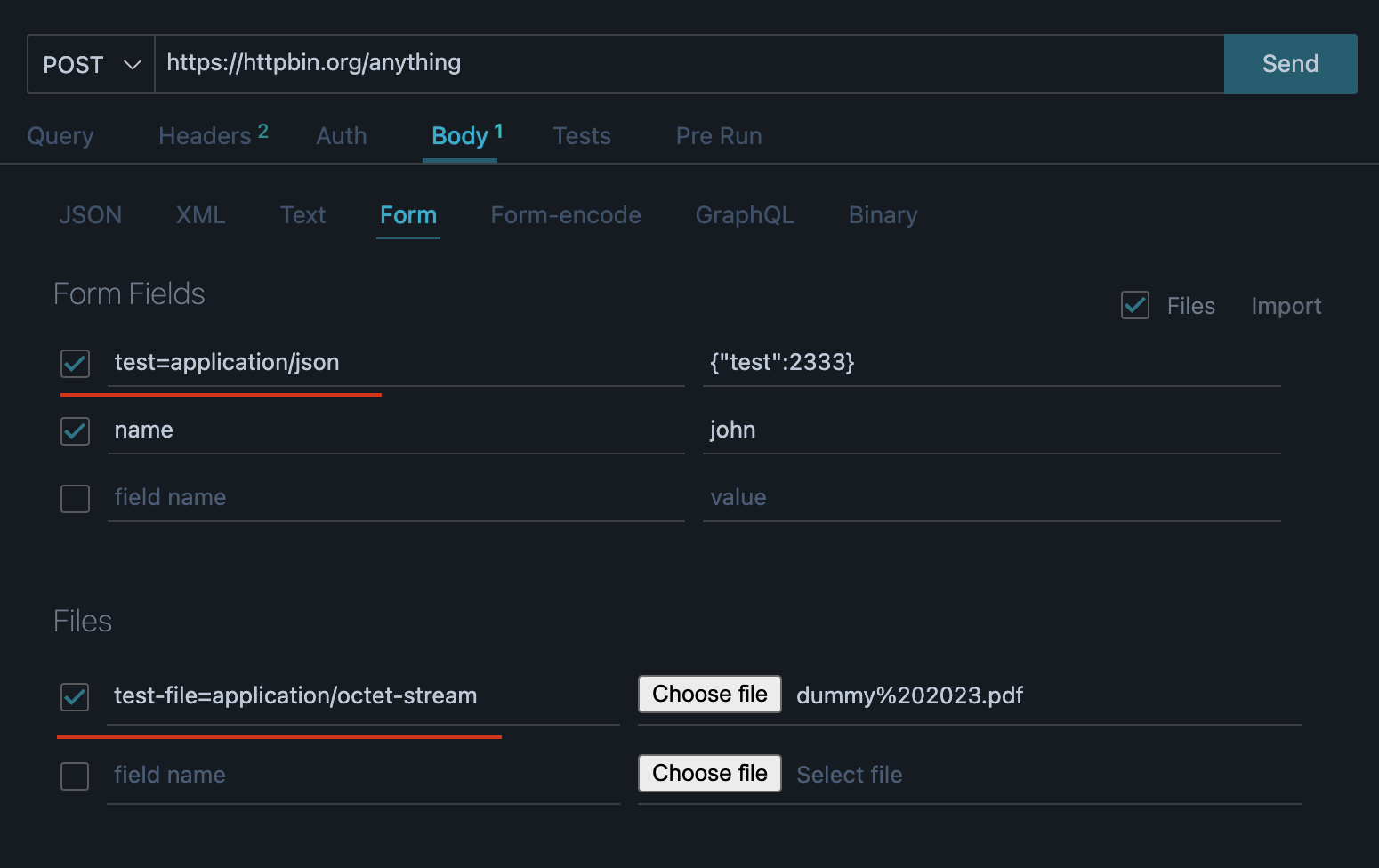
- Users can append the content type to the field name in the format:
name= - For example:
first-name=application/json - See screenshot below for more examples
Common Issues
See solutions to common problems
Connection was refused by the server
- Solution 1: Please try using axios or the got HTTP library
-
Solution 2: Please use the IP addresses below and test again
- [::1]
- [::] WSL or Linux
- 127.0.0.1
- 0.0.0.0
- Issue references: #251 comment , #170 comment , #170 comment
Last updated on