Collection Runner
The Collection Runner executes all requests in a collection and displays results with pass/fail status, response times, and test assertions.
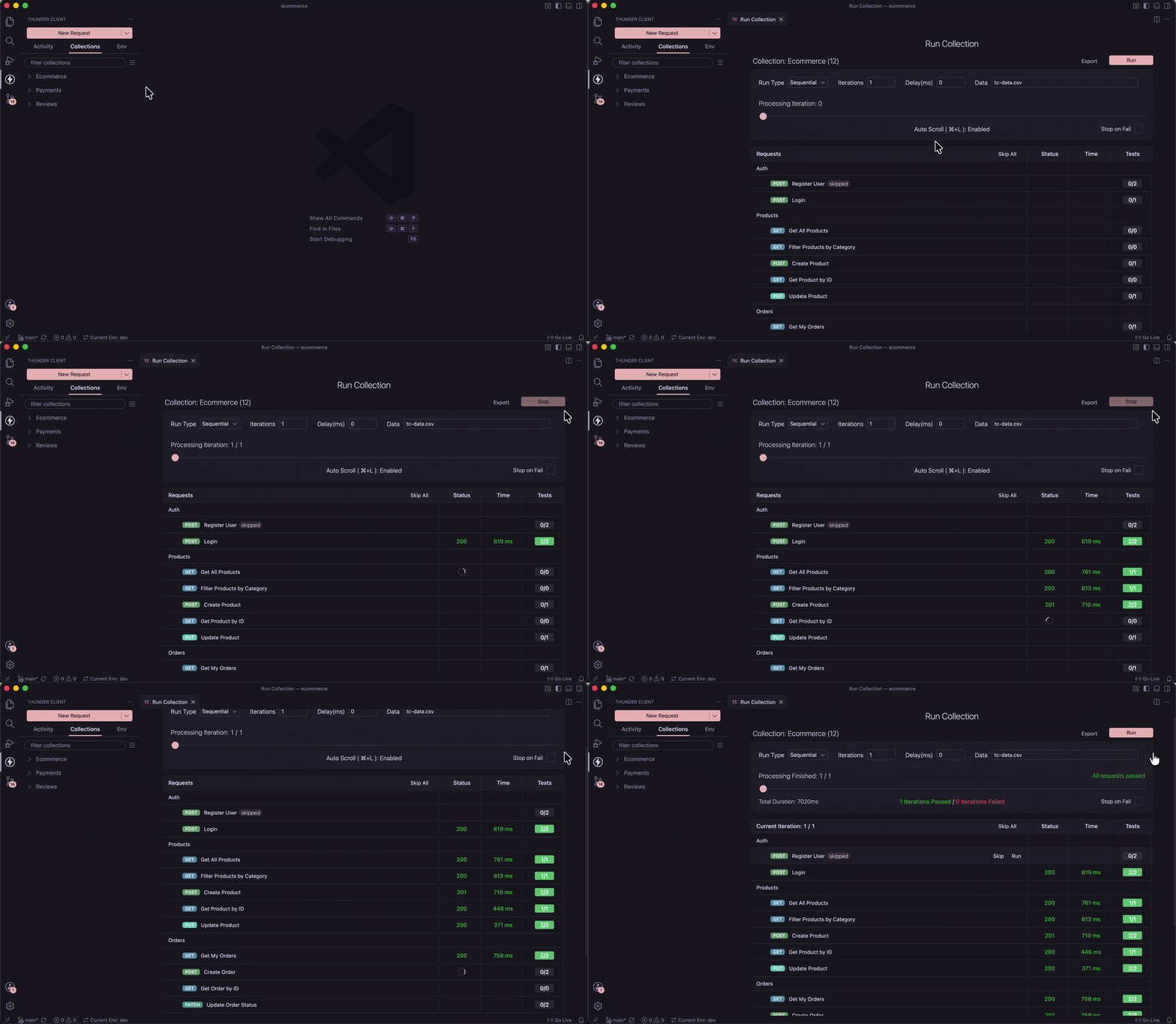
Video Walkthrough
Video guideCollection Runner walkthroughYouTubeHow to Open
- Right-click on any collection and select Run All.
- The Run Collection view opens where you can configure and start the run.
- Folders can also be run on their own, which runs only the requests in that folder.
Run Types
- Sequential — Runs requests one after another. Use this when requests depend on each other, such as logging in before creating a product or placing an order.
In sequential mode, drag and drop requests in the collection to change the execution order.
- Parallel — Runs all requests simultaneously. Use this for independent requests when speed matters.
Stop on Fail
- Enable the Stop on Fail checkbox in the Run Collection view to stop the run as soon as a request fails.
- When it is off, the run continues and the failure is shown in the results.
Skip
- Click the Skip button on a request or folder to exclude it from the run.
- Skipped items remain in the collection and can be re-enabled at any time.
Data-Driven Testing
Use a data file when you want to test the same flow with different inputs — for example, registering multiple users in one run.
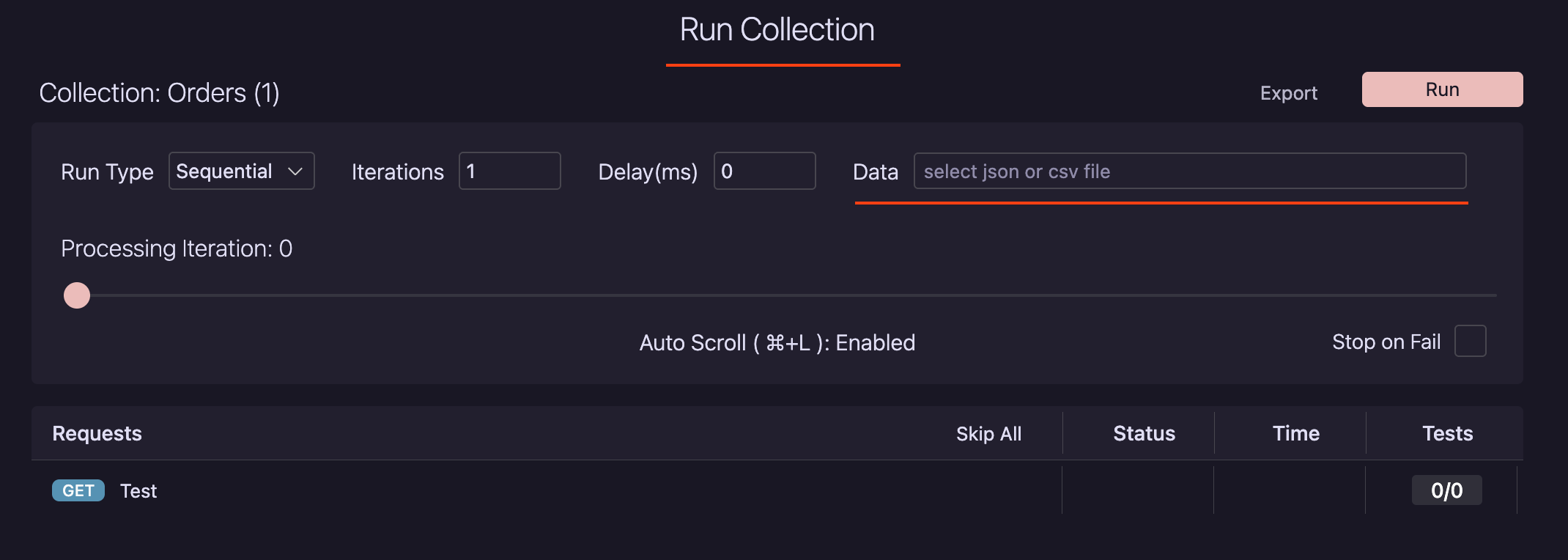
- In the Run Collection view, use the Data field to select a CSV or JSON file. Use the delete icon next to the field to remove it.
- Column headers (CSV) or keys (JSON) become the variable names, for example
{{username}},{{email}}, and{{password}}. - Each row is one iteration; the
{{name}}placeholders are replaced with that row’s values. See Variables for the{{name}}syntax. - The current iteration number is available in scripts with
tc.info.currentIteration. - The Data File feature is available only in the paid version.
Example CSV
data.csv
username,email,password
alice,alice@example.com,Pass@123
bob,bob@example.com,Pass@456
carol,carol@example.com,Pass@789
Example JSON
data.json
[
  { "username": "alice", "email": "alice@example.com", "password": "Pass@123" },
  { "username": "bob", "email": "bob@example.com", "password": "Pass@456" },
  { "username": "carol", "email": "carol@example.com", "password": "Pass@789" }
]
Data-Driven Testing in CLI
You can run the same data-driven test from the terminal, with one iteration per row. If no data file is passed, the CLI uses the one attached in the Run Collection view. See Data-Driven Testing in the CLI docs for usage.
Iterations
- Set the number of times the collection should run.
- Default is
1. - When you select a data file, Iterations is set automatically to the number of rows in the file. Each row represents one iteration.
Delay
- Set a delay between requests in milliseconds.
- Default is
0(no delay).
Export Reports
- Click Export after the run to save results.
- Supported formats:
JSON,HTML,XML.
Run from CLI
Collections can also be run from the terminal without opening the extension. For example, to run a collection with a data file:
tc --col 'colNameOrId' --data-file 'relativePathOrFullPath'Add --stop-on-fail to stop the run when a request fails. See the CLI documentation for details.
Last updated on