Offline Activation
This feature is available only in the Enterprise plan.
Please follow the steps below to generate an offline access code and activate the license. This is useful when you are working in a secure environment where the target PC or Mac does not have internet access.
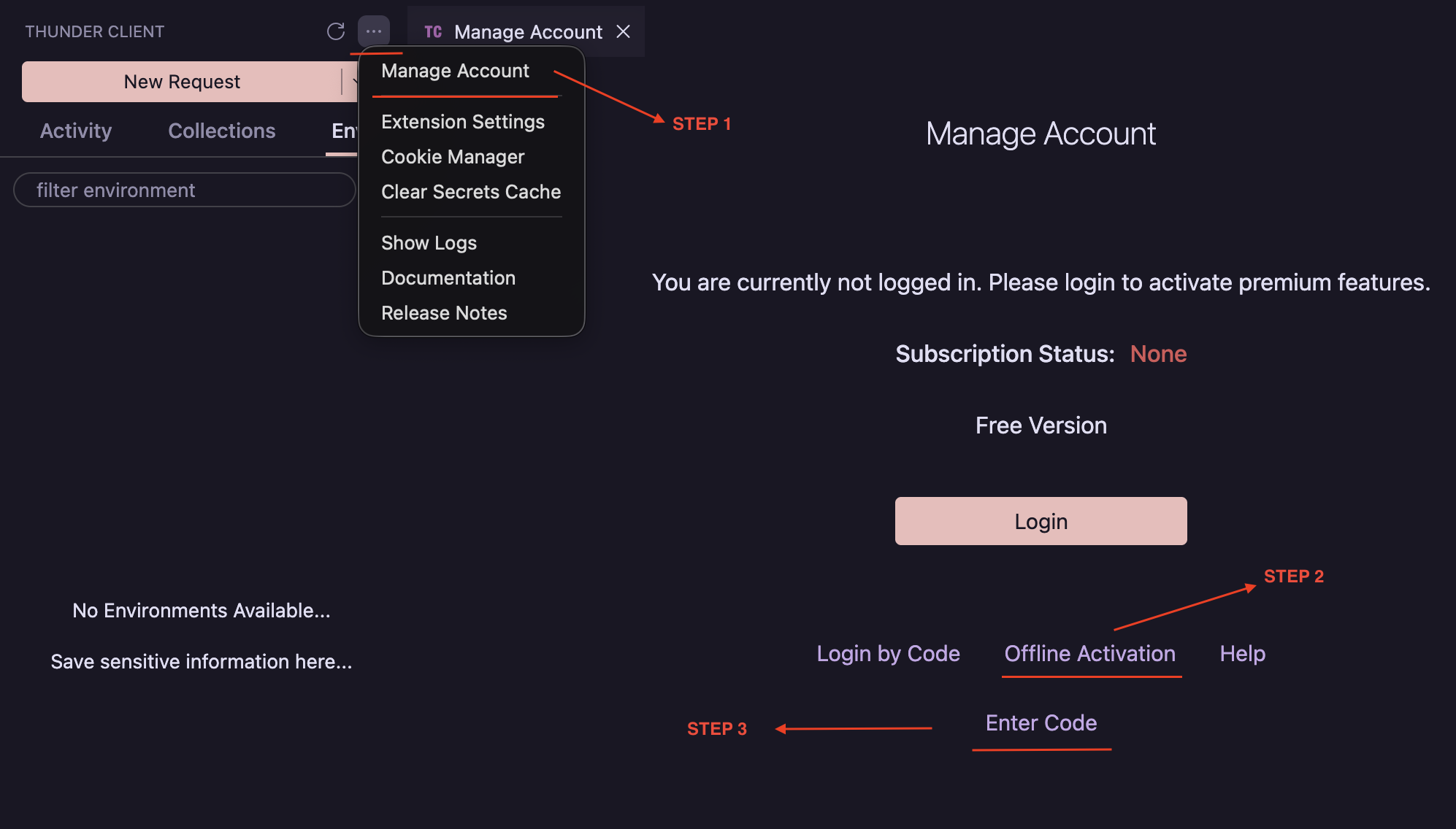
Step 1:
- Open
VS Codeon the target PC or Mac where you want to use offline activation. - Open the
Manage Accountview from the Thunder Client sidebar using the...menu (STEP 1 in the image above).
Step 2:
- Click the
Offline Activationbutton (STEP 2 in the image above). - This will open a link in the browser.
- Copy this link to a computer with an
internet connection. - Enter your email address and follow the instructions to generate an
offline access code.
Step 3:
- Copy the
access codefrom the previous step. - Click the
Enter Codebutton (STEP 3 in the image above) and press Enter. - This will activate the license on the target PC/Mac.
Support
- If you have any issues with the offline activation, please contact us.
Last updated on