gRPC
gRPC is a high-performance RPC framework built on HTTP/2 and Protocol Buffers. A service and its methods are defined in a .proto file, and clients call those methods with typed messages. It is widely used for communication between microservices.
With a gRPC Request, you import the proto file, pick a method, write the request as JSON, and Thunder Client handles the encoding for you.
Call Types
Thunder Client supports all four gRPC call types.
| Call type | Label | Client sends | Server sends | Example |
|---|---|---|---|---|
| Unary | — | One message | One message | GetUser |
| Server streaming | Server | One message | A stream of messages | TrackOrder |
| Client streaming | Client | A stream of messages | One message | UploadReadings |
| Bidirectional streaming | Bi-dir | A stream of messages | A stream of messages | Chat |
Make Your First Call
Create a gRPC request
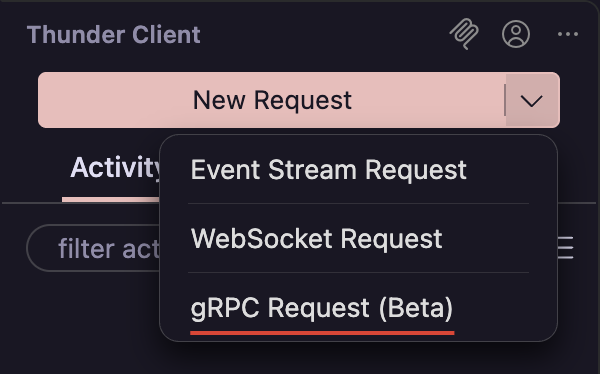
In the sidebar, click the arrow next to New Request and select gRPC Request (Beta).
Import the proto file
In the Import tab, click Choose File to import a .proto file from your computer, or click the import icon to download one from a URL.
Enter the server address
Enter the address as host:port, for example localhost:50051. Do not include http:// or https://.
Select a method
Choose a method from Select Method. Streaming methods are labeled Server, Client, or Bi-dir.
Write the request message
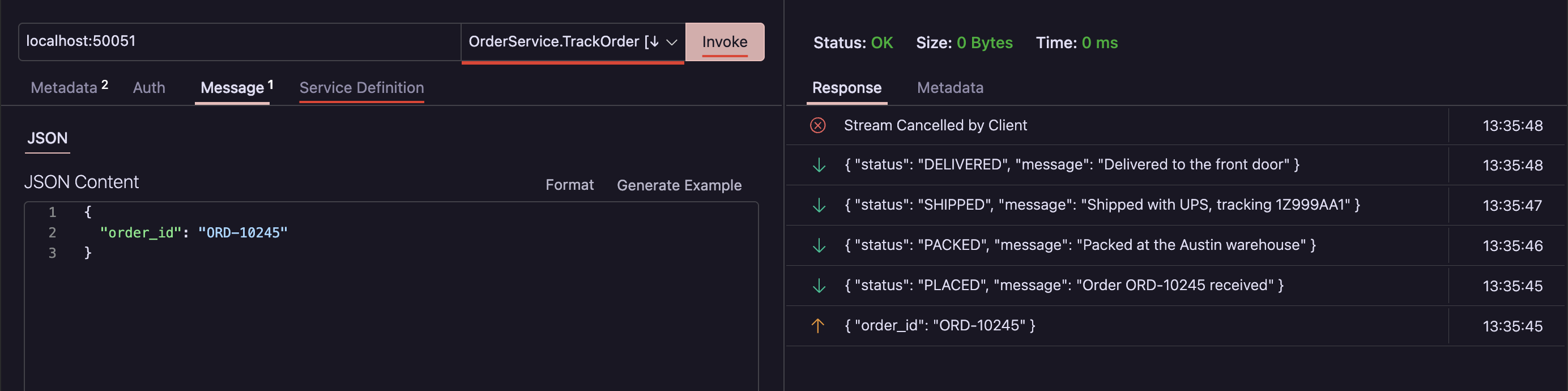
In the Message tab, write the request as JSON. Click Generate Example to create a sample message from the proto definition, then edit the values.
{ "orderId": "ORD-1001" }Invoke
Click Invoke. The response appears on the right, along with the status.
Manage Proto Files
A request can use more than one proto file.
- Select Proto — Switch between the imported proto files.
- Reload — Click the reload icon next to Select Proto to pick up changes after you edit a proto file.
- Clear all — Remove all imported proto files from the request.
Documents folder.Streaming
- Server streaming — Click Invoke. Each message from the server is added to the response as it arrives, until the server ends the stream.
- Client and bidirectional streaming — Click Invoke to open the stream and send the first message. Edit the message and click Send to send more while the stream is open. Click Stop to end the stream.
Metadata, Auth, and TLS
- Metadata — Use the Metadata tab to send gRPC metadata, the gRPC equivalent of HTTP headers. Metadata returned by the server is shown with the response.
- Auth — Basic and Bearer auth are sent as
Authorizationmetadata. For other schemes, such as API keys, add them in the Metadata tab. - TLS — Check Enable TLS in the Import tab to connect over TLS using your system’s trusted certificates. Leave it unchecked for plaintext connections, which are common in local development.
Errors and Status Codes
When a call fails, the response shows the gRPC status code and the error details from the server. Common codes:
| Code | Name | Usual cause |
|---|---|---|
3 | INVALID_ARGUMENT | A field in the message is missing or invalid. |
5 | NOT_FOUND | The requested resource does not exist. |
12 | UNIMPLEMENTED | The server does not implement this method. Check that the proto file matches the server. |
14 | UNAVAILABLE | The server cannot be reached. Check the address, port, and Enable TLS. |
16 | UNAUTHENTICATED | Credentials are missing or invalid. |
Limitations
While gRPC is in Beta, these HTTP features are not available for gRPC requests:
- Environment variables. Enter the server address, metadata, and message values directly.
- The Tests and Pre Run tabs.
- Code snippets.
- Auth types other than Basic and Bearer.
- Server reflection. Import the
.protofile for the service instead.
Troubleshooting
| Problem | What to check |
|---|---|
| Select Method is empty | The proto file did not load, or it defines no services. Import the file again and check it for errors. |
UNAVAILABLE or a connection error | Check host:port, and match Enable TLS to the server: on for TLS servers, off for plaintext. |
| A proto file with imports fails to load | Make sure the imported files are available alongside it. |
| Changes to the proto file are not showing | Click the reload icon next to Select Proto. |